


Okay, let me be real with you. When I first heard TestMu AI I rolled my eyes a little. Another testing tool slapping “AI” on the label to sound modern? I’ve seen that movie before.
But after trying it, I was pleasantly surprised. TestMu AI — the rebranded LambdaTest — isn’t just a name change. The platform has been rebuilt with AI at its core. Features like KaneAI and HyperExecute genuinely stood out and made the experience impressive.
One Platform. Every Test Type.
At its core, it’s a cloud-based testing platform — but a smart one.
You get:
- Web testing
- Mobile testing
- API testing
- Performance testing
All in one place.
That alone isn’t groundbreaking. What’s different is how much AI is woven into every step of the process.
KaneAI Agent — The Part That Actually Surprised Me
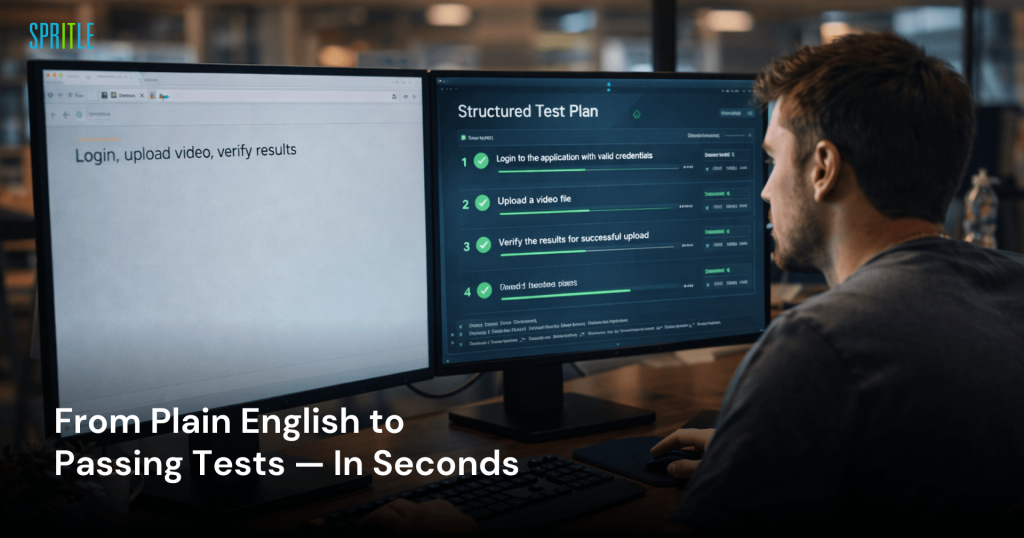
KaneAI is a GenAI-powered testing agent.
Instead of writing code, you describe what you want to be tested.
That’s it.
USE CASE 1
Login → Upload Surgery Video → Verify Upload → Search With Filters
What this use case covers
This workflow ensures a surgeon can upload and access surgical videos successfully.
It verifies:
- Secure login
- Successful video upload with confirmation
- Ability to retrieve the uploaded video using search and filters
The KaneAI Prompt
KaneAI accepts plain English.
I described the flow exactly as I’d explain it to a new team member:
Launch URL: https://xyz.io/login
Enter email: swethasekar@spritle.com
Enter password: Surgeon@2026
Click Sign In — confirm the page lands on the dashboard
Go to the Videos menu from the left panel
Click 'Upload Surgery Video'
Upload the file: laparoscopy_procedure_001.mp4 and select Procedure Type as 'Laparoscopy'
Confirm the success message: 'Video uploaded successfully'
Search for 'laparoscopy_procedure_001' using the search bar
Apply filter: Procedure Type = Laparoscopy, Duration = 1–2 hours
Confirm the uploaded video appears in the filtered results
Confirm the video thumbnail and upload timestamp are visible
How KaneAI handled it
KaneAI converted the prompt into a structured test plan in about 12 seconds, capturing all 12 steps and adding two smart assertions:
- Ensuring the Sign In button disables during authentication to prevent double submits
- Verifying the upload progress bar reaches 100% before the success message appears
These are subtle checks that are often missed in manual test writing but were inferred from the workflow context.
✅ Test Result — All Steps Passed
- Login and session validation — PASS
- (KaneAI added): Sign In button disabled during request — PASS
- (KaneAI added): Upload progress bar tracked to 100% — PASS
- Success message ‘Video uploaded successfully’ — PASS
- Video visible in My Uploads with correct filename — PASS
- Search returned correct result — PASS
- Filters (Duration + Procedure Type) applied and results confirmed — PASS
- Thumbnail and timestamp visible in filtered results — PASS
What stood out
- No selectors
- No XPath
- No framework configuration
Just a plain English description.
KaneAI also added UI state assertions (button disabled, progress bar) that we hadn’t specified.
The full flow from login to filtered search result completed in under 2 minutes.
You might think it’s just another record-and-playback tool — but it’s not.
KaneAI understands testing intent and generates maintainable tests, while also accepting inputs like:
- Jira tickets
- Design docs
- Screenshots
as testing context.
What About When the UI Changes?
This is where most automation fails — UI changes break tests.
KaneAI helps by automatically maintaining tests as the application evolves, reducing the brittleness often seen in manual Selenium test suites.
USE CASE 2
Login → Upload → ML Analysis → Performance Metrics → Analytics Dashboard
What this use case covers
This is the platform’s core value.
After upload, the ML model analyzes the video and generates performance metrics for surgical quality and error detection, with visual insights on when issues occurred, helping surgeons track progress over time.
The Async Challenge — and How KaneAI Handles It
ML processing can take 2–4 minutes depending on video length.
KaneAI handles this with built-in wait commands, allowing you to describe the wait in plain English as part of the test steps.
The KaneAI Prompt
The two wait steps — “wait for 4 minutes” and “wait for the results page to appear” — are native commands in KaneAI written in plain English.
They allow time for ML processing and ensure the results page loads before assertions run, eliminating the need for custom code or framework setup.
What the Test Validated
✅ Test Result — All Steps Passed
- Login and upload — PASS
- Processing screen shows surgeon name and filename — PASS
- Wait for ML analysis (4 minutes) — completed successfully
- Results page loaded — PASS
- Performance Metrics tab visible with score — PASS
- Error Detection tab shows error types and timestamps — PASS
- Analytics Dashboard section present — PASS
- Chart 1 (Performance Over Time) rendered with content — PASS
- Chart 2 (Error Detection) rendered with content — PASS
- CSV data validated against dashboard values — PASS
- (KaneAI added): No placeholder or null values displayed — PASS
Why This Test Matters
The ML output is critical for surgeons, so the test verifies that:
- Performance Score falls within valid ranges
- Error Detection values are accurate
This ensures data integrity.
It also checks that dashboard charts contain actual rendered data, not just empty containers — confirming the results are truly displayed.
💡 What stood out
- Wait handling needed no custom code
- Numeric ranges validated, not just element presence
- CSV data validated against dashboard values
- Full flow from login to validated dashboard completed in just over 4 minutes
HyperExecute — Both Use Cases Running Together
Once both use cases were working individually, I combined them into a full suite and ran everything through HyperExecute with 5 parallel workers.
The ML pipeline tests were allocated dedicated workers so they didn’t compete with faster UI tests for resources.
⚡ HyperExecute Run — Both Use Cases Combined
Total tests: 14
Parallel workers: 5
- Use Case 1 (upload + search): 1 minute 48 seconds
- Use Case 2 (ML pipeline + dashboard): 4 minutes 21 seconds
Total suite runtime: 6 minutes 41 seconds
Equivalent sequential runtime: ~34 minutes
All 14 tests passed
Both use cases ran against the live environment simultaneously without interfering with each other.
HyperExecute handled the infrastructure allocation automatically — no YAML configuration needed for basic parallel runs.
The Smart Bits That Do the Work Quietly
- Auto-split to optimize test distribution
- Fail-fast to stop runs when critical failures occur
- Auto-healing for broken locators
- Flaky test detection to identify unstable tests
After each run, it provides detailed debugging data including:
- Console logs
- Network logs
- Command logs
- Full video replay
Reports That Actually Tell You Something
I’ve used plenty of tools where “analytics” means a pie chart of pass and fail.
TestMu AI’s reporting is different.
It provides deeper reporting than simple pass/fail charts.
Its AI root cause analysis quickly identifies failure reasons and bundles evidence like:
- Screenshots
- Network logs
- Console logs
- Video replay
for fast debugging.
It also tracks flaky test trends, helping uncover unstable tests that might otherwise go unnoticed.
My Honest Take
TestMu AI isn’t just a marketing rebrand — it delivers real value.
The combination of:
- KaneAI, which simplifies test creation
- HyperExecute, which speeds up execution
addresses two major challenges in modern testing.
For many QA teams struggling with slow feedback cycles or automation backlogs, it’s definitely worth trying out.


